Update Dialogue Box
When you press [Update], a dialogue box will open in the CIA. Update styles and modifiers for those styles will be divided in the Update Dialogue Box.
Default Update Modes are set in Setup > User > Record Defaults.
Note: If Updating By Type Presets, {By Type} is available as a softkey.
Update Styles
- {All} - this button will update the target cue and all references stored to that cue (nested and otherwise).
- {Make Absolute} - this button will update the target cue and convert all levels to absolute values, thereby removing any references.
- {Ref Only} - this button will only update the palettes or presets used in the cue, but will not update the cue itself. If a manual reference was used before using {Ref Only}, the last manual reference will be updated.
Update Modifiers
- {Last Ref} - updates using the last reference that was applied via the command line, rather than the original reference for the values present in the cue.
- {Break Nested} - updates the target cue and any presets used, but breaks the reference to any palettes nested in a preset. For example, if cue 1 channel 1 references preset 3, and preset 3 was built using color palette 5. When updated with this option, preset 3 would be updated, color palette 5 would not, and the reference to CP5 would be broken in preset 3.
- {Reset Update} - clears any commands after the [Update] command to quickly undo pending changes before [Enter] is pressed.
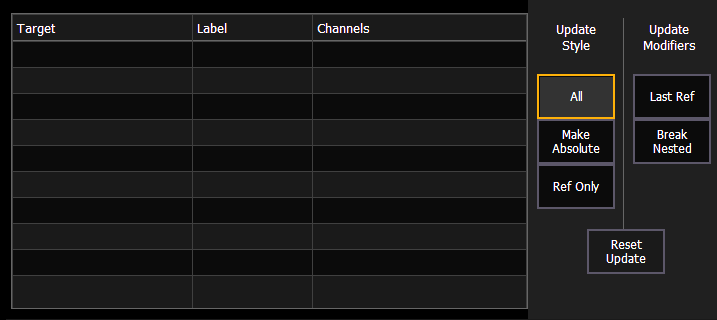
The dialogue box also provides you with a listing (by record target) of what channels/parameters will be impacted by the update instruction. If the channel contains a reference in the cue, it is indicated. Channels that have been manually added to the stage output, but are not overrides of an active cue will update to the selected cue list.
Once you have made a selection from the available options, press [Enter] and the target will be updated.
Targets may be deselected from the dialogue box, excluding them from the update without specifying the target number, for example, [Update] [Color Palette] [Enter]. Selecting a line by clicking or pressing it can also be used to deselect a target. Element Classic users will need to use {Color Palette}.
On Eos Family devices that do not have a [Snapshot] hardkey, there is a {Snapshot} softkey available in the Update display.